

This guide explains how to request a full license or a 14-day demo license for eligible products such as TC-Angel. Applications are available at license.toushika.top.
Important: A license is issued after the account information and application details have been reviewed. Please use an email address that you can receive and verify.
How to Request a Full License
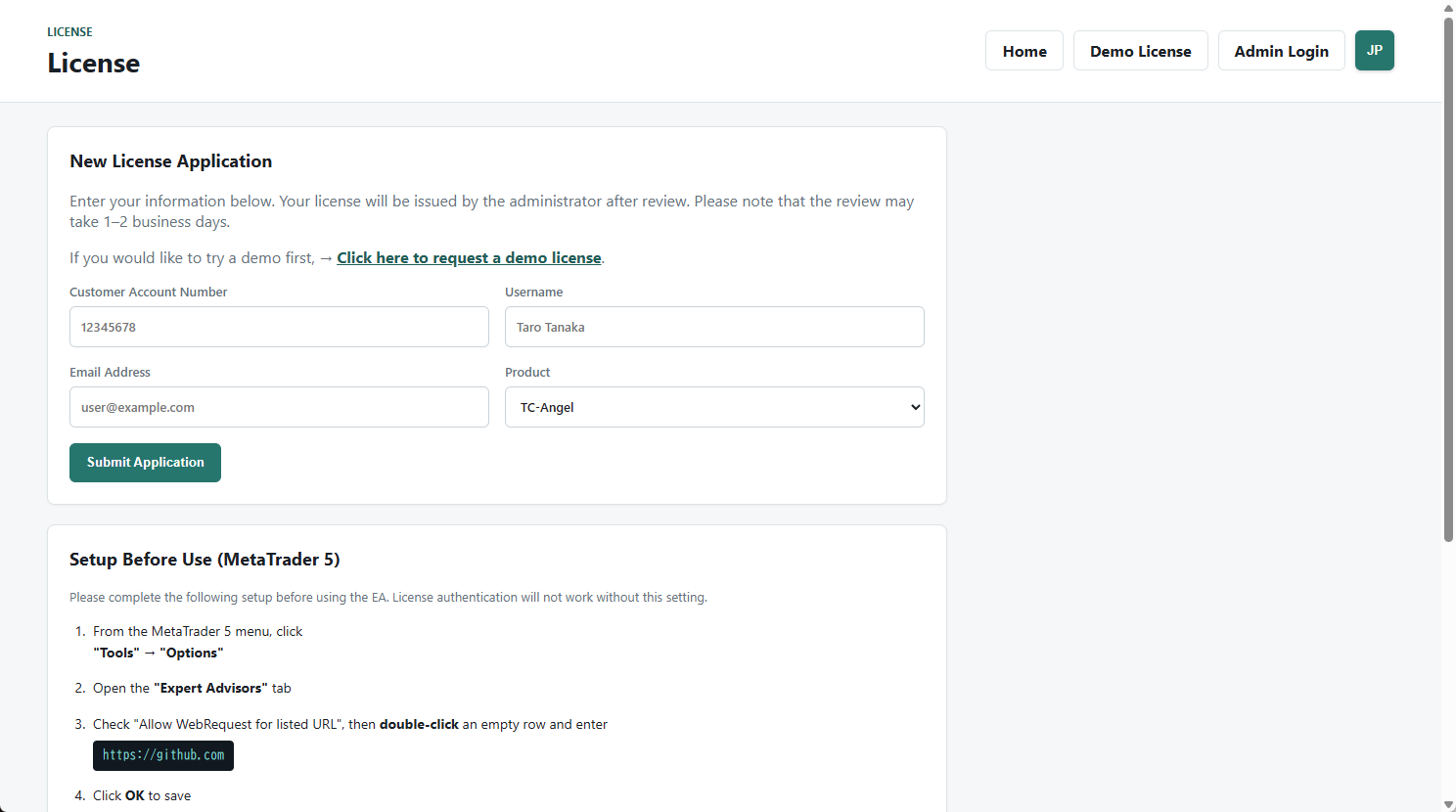
- Select the product
Choose the license product you would like to use from the Product list. - Enter your account number, username, and email address
Enter your MT5 login ID (account number), username, and a valid email address, then submit the application. - Open the link in the verification email
A verification email will be sent to the address you entered. Open the link in that email to complete the application. - Administrator review
After email verification, the administrator reviews the application and registration status. Review and issuance may take 24–48 hours (about 1–2 business days). - Receive the license issuance email
After the review is complete, license issuance instructions are sent to your registered email address.
Affiliate / IB registration check
For eligible products, an affiliate or IB registration status may need to be confirmed. If the application details and registration status do not match, the administrator will contact you. Complete any required registration and submit a new license application afterward.
How to Request a 14-Day Demo License
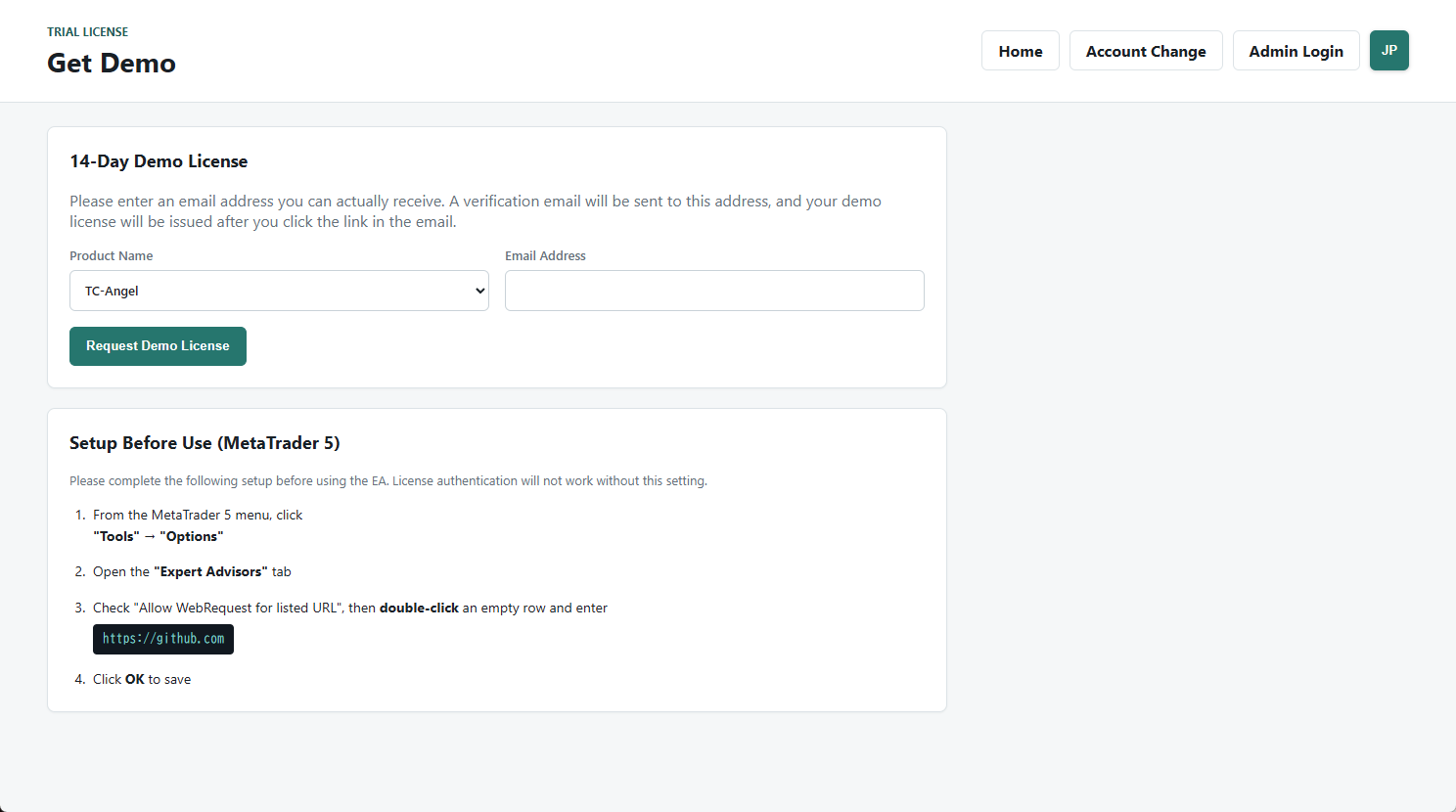
- Open the Demo License page
On the license site, select Demo License and choose the product you would like to try. - Enter a working email address and submit
The demo is available for 14 days. Please use an email address you can actually access. - Open the link in the verification email
The first email verifies your address. Opening the link starts the demo issuance process. - Receive your Demo ID
After your email address is verified, an email with your demo license instructions and Demo ID will be sent. - Extract the ZIP file and enter the Demo ID
Extract the downloaded ZIP file, place the EA in MetaTrader, and enter the issued Demo ID in the EA settings.
MetaTrader 5 Setup Before Use
Before license authentication can work, allow WebRequest in MT5.
- Open Tools → Options in MetaTrader 5.
- Open the Expert Advisors tab.
- Enable Allow WebRequest for listed URL and add:
https://github.com - Click OK to save.
Common Checks
- If you do not receive the verification email, check the email address and your spam folder.
- If the verification link is invalid or expired, submit a new application.
- A full license is not issued until the administrator review is complete, even after email verification.
- After the demo period ends, please consider a full license.
Notes
License eligibility and usage conditions may vary by product, registration status, and the latest guidance. Always refer to the application screen and the email instructions you receive.